Find Work Orders
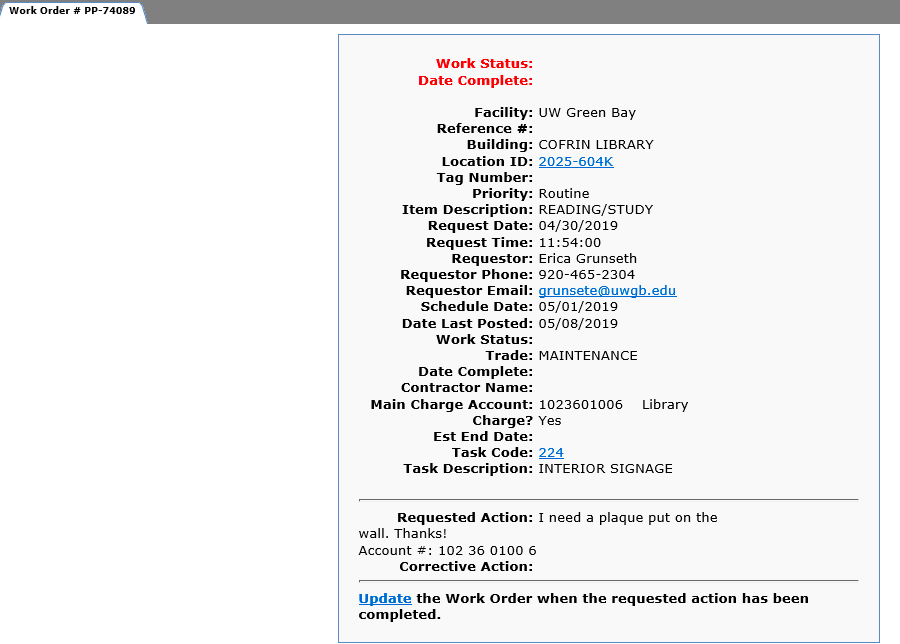
Once a Facilities work request has been made in the TAM iService Desk Work Request System, you can look up the work order to see details like: work status, date complete, building, priority, description, request date, requestor, schedule date, contractor name and charge information.
How to Search for an Existing Work Order
Follow the steps below to search for an existing work order in the TAM iService Desk Work Request System.
- Open the TAM iService Desk Work Request System.
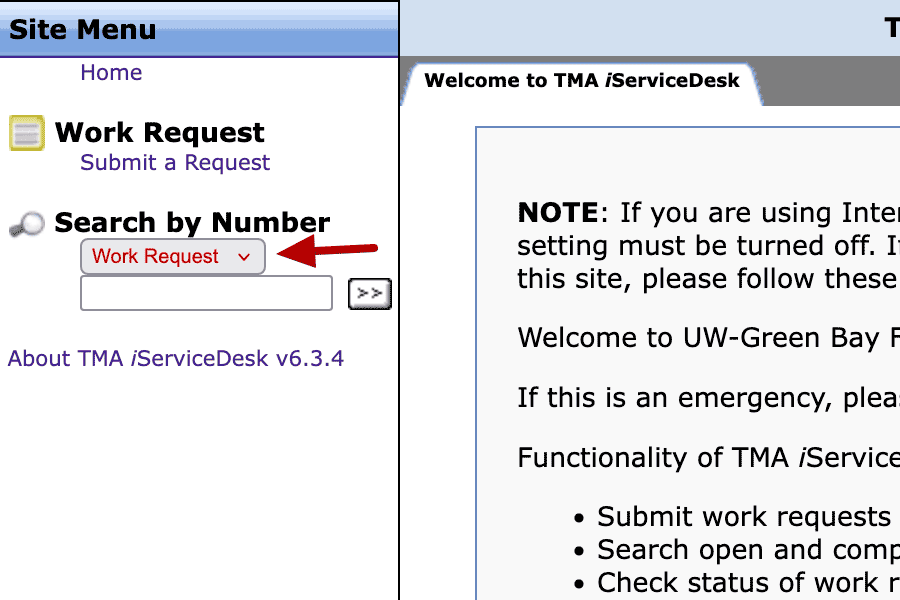
- Under "Search by Number" switch the Work Request field to Work Order.
- Type in the work order number and click the button to submit.
Work order numbers almost always start with PP- followed by a number, for example: PP-74089. If PP doesn't work try HM.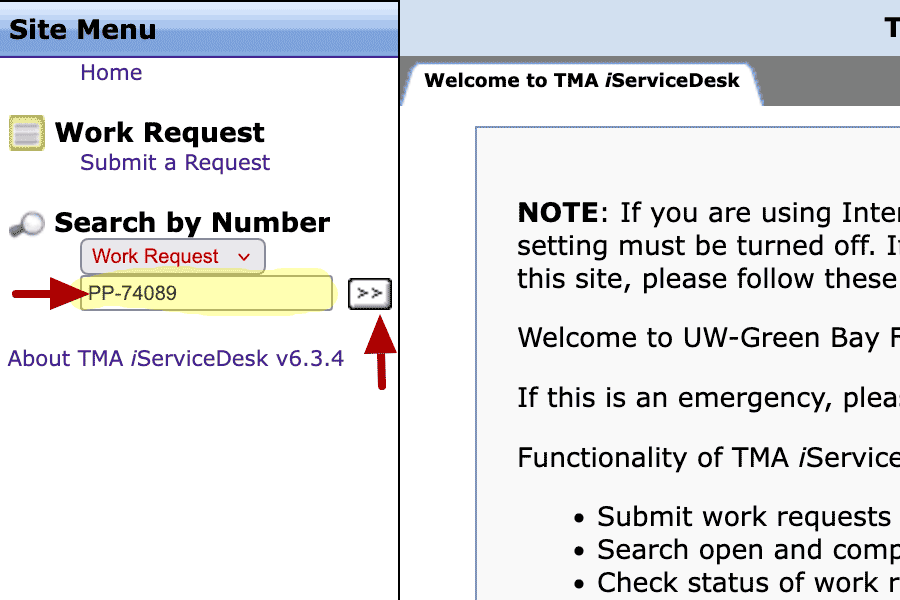
- Review the work order information. Details of the work order should appear on the screen.
Need help?
Have a question about a work order or need help using the work request system? Just reach out! We're happy to help!