Find Your Enrollment Date
Your class registration doesn’t open at the same time as everyone else’s. Your exact start time, called your Enrollment Date, is based on how many credits you’ve already earned. When your Enrollment Date arrives, you can log in to SIS and register for classes. You’ll find your personalized date and time right inside your SIS account.
How to Find Your Enrollment Date in SIS
Follow the steps below to find your Enrollment Date in SIS.
- Log in to SIS with your UWGB username and password.
- Complete the multi‑factor authentication prompt. Confirm using your chosen method.
- After authentication, you’ll land on the Student Homepage.
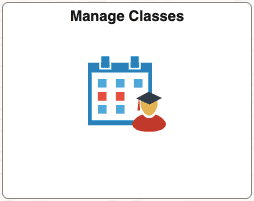
- Open the Manage Classes tile on your Student Homepage.
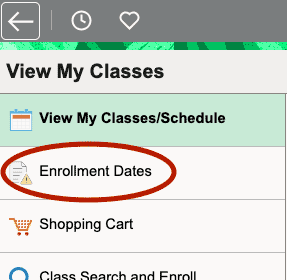
- Select Enrollment Dates from the left menu, then select a semester.
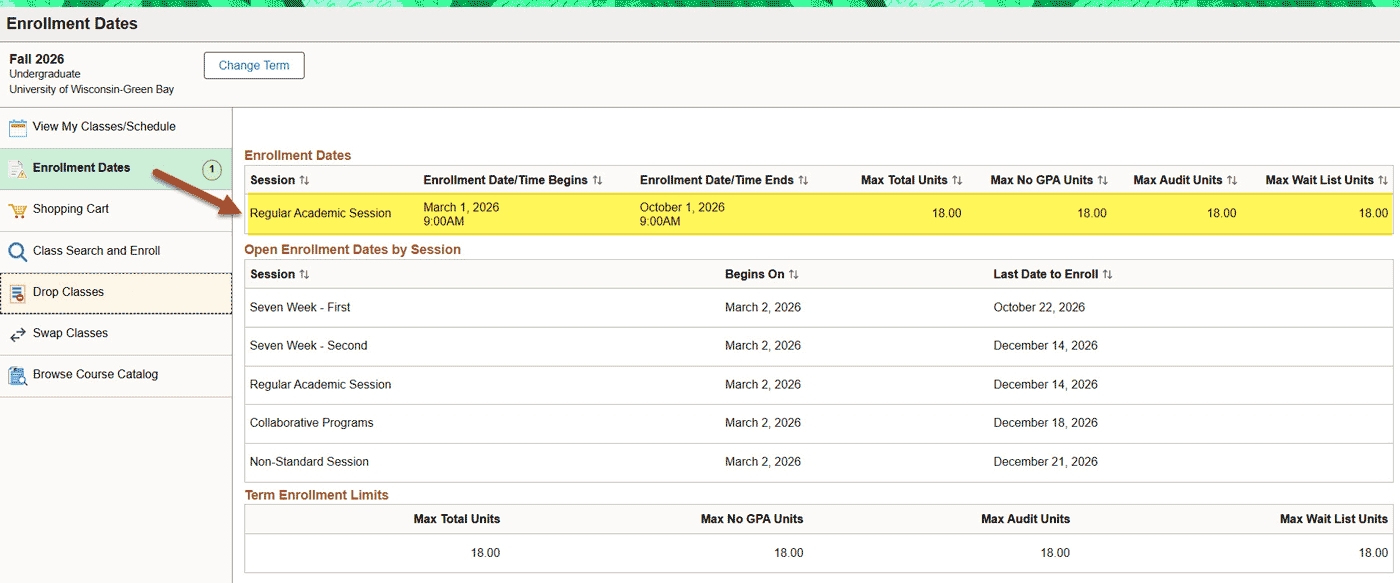
- Look under Enrollment Appointments to see your assigned date and time. This is when you can begin registering for classes.
- Mark your calendar. Add your Enrollment Date to your calendar so don't miss registering as soon as your window opens.

Here to help!
We're here to answer your questions. Our knowledgeable support staff are ready to provide personal assistance with all your advising needs.