Class Schedule & Details
View your Class Schedule
- Log in to SIS with your UWGB username and password.
- Complete the multi‑factor authentication prompt. Confirm using your chosen method.
- After authentication, you’ll land on the Student Homepage.
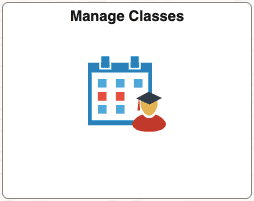
- Open the Manage Classes tile on your Student Homepage.
- By default, you will land on the View My Classes/Schedule tab. Your enrollment will either display automatically or you will need to select a term first to view your corresponding enrollment.
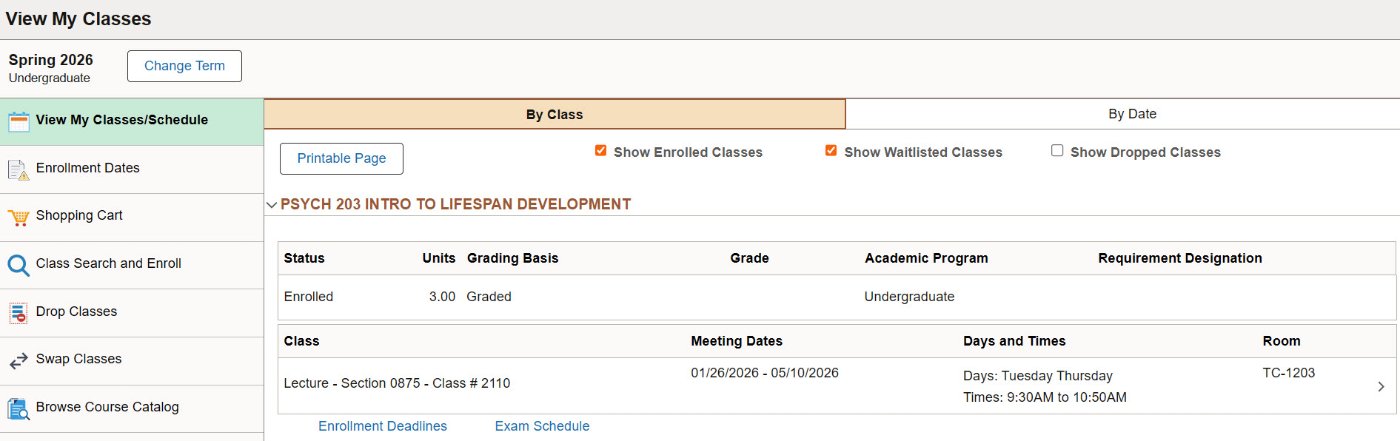
View Class Details
In the View My Classes/Schedule tab, select
Customize View
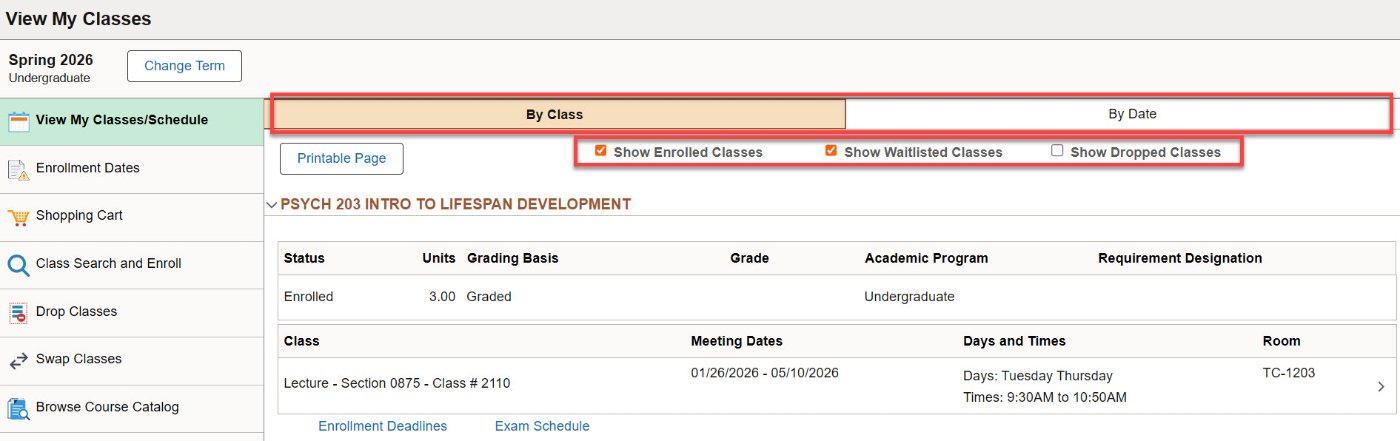
In the View My Classes/Schedule tab, there are several options available to customize your view. You can filter to show your enrolled, waitlisted, and/or dropped classes using the checkboxes, and click the tabs at the top to sort by class subject (alphabetically, then by number) or by date.
Print your Schedule
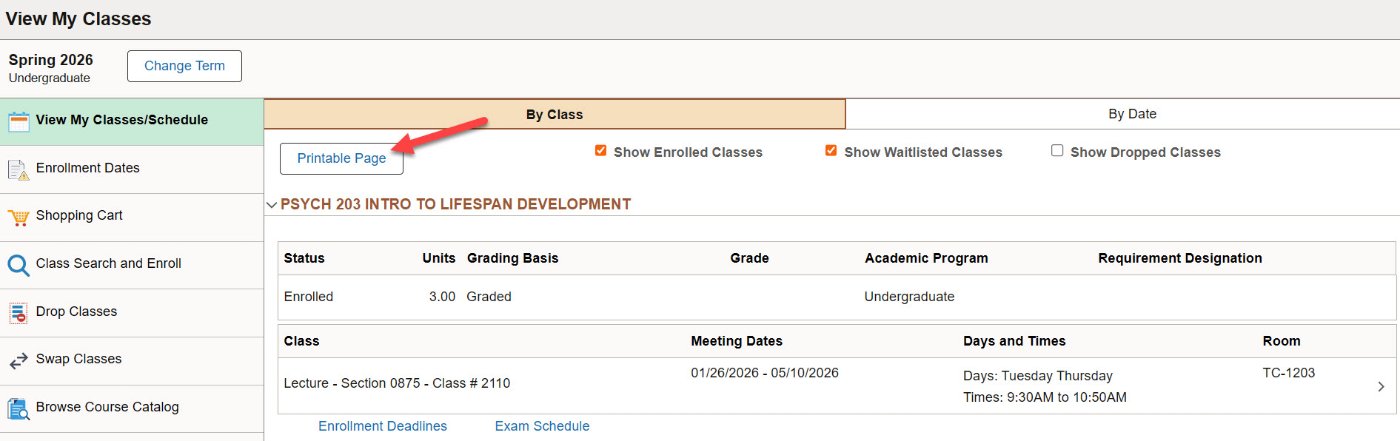
- In the View My Classes/Schedule tab, a printable, PDF copy of your schedule can be generated by clicking the Printable Page button.
- Select Print in the preview window.
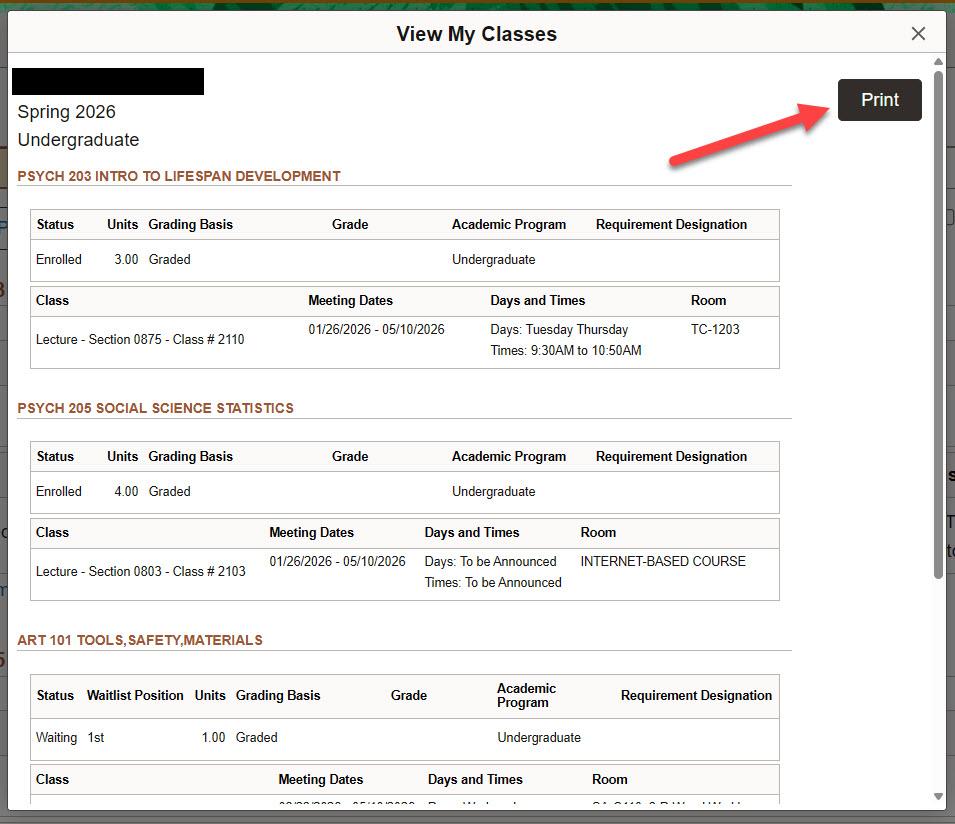
- A print dialogue box will appear. Select your print options, then click Print.

Here to help!
We're here to answer your questions. Our knowledgeable support staff are ready to provide personal assistance with all your advising needs.