Search for Classes
The first step to registering for classes is searching to see what courses will be available for the term. You can search classes a few different ways. One of them is directly in SIS using the Class Search tool or by using the Schedule of Classes.
How to Search for Classes in SIS
Follow the steps below to search for classes in SIS.
- Log in to SIS with your UWGB username and password.
- Complete the multi‑factor authentication prompt. Confirm using your chosen method.
- After authentication, you’ll land on the Student Homepage.
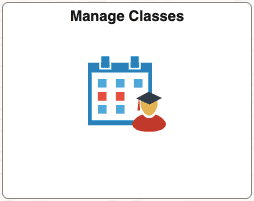
- Open the Manage Classes tile on your Student Homepage.
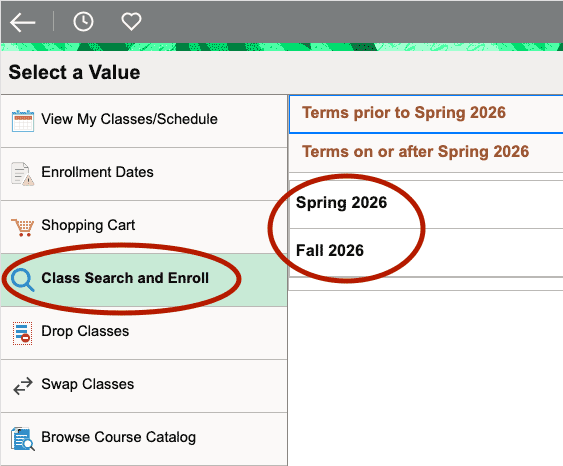
- Select Class Search and Enroll, then click the appropriate semester.
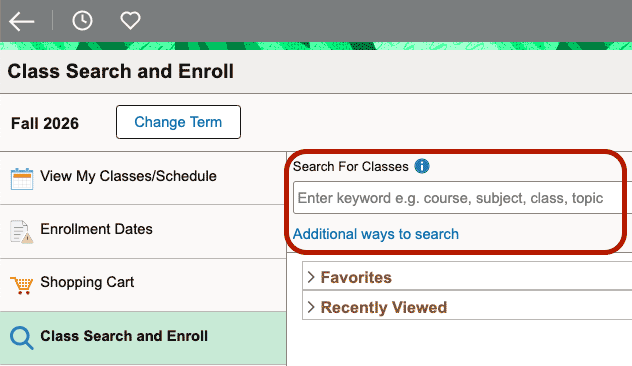
- Under Search for Classesthere are two different ways to search. You can:
- enter a specific course title (e.g., ART 102) into the text field and click the button
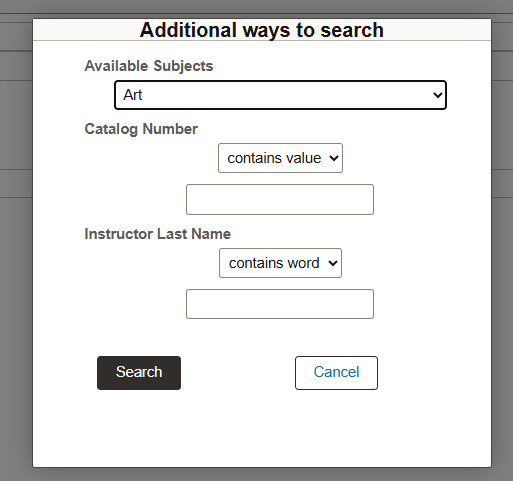
- or click Additional ways to search to search by Available Subjects, Catalog Number, or Instructor Last Name.
- enter a specific course title (e.g., ART 102) into the text field and click the button
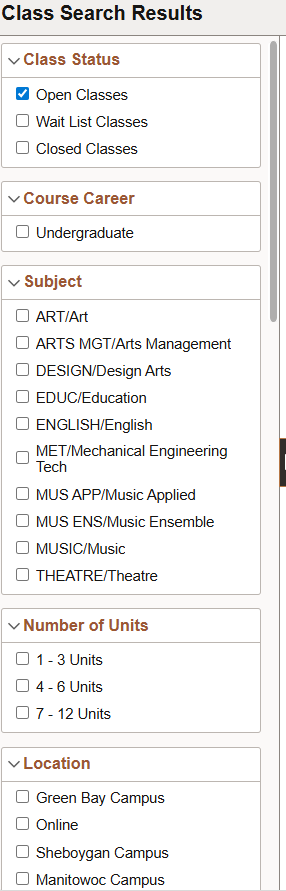
- Additional filter options will be available once you click Search.
Search Using the Schedule of Classes
Like the SIS Class Search, the Schedule of Classes lets you browse and search for courses offered at UW-Green Bay. It's essentially a searchable index of everything the university plans to teach in a given term. You set the filters, the system returns every class that matches. Use filters like term, campus, subject, instructor, meeting days or class format to create a custom list of courses that match your search.
How to Use the Schedule of Classes
Follow the steps below to use the Schedule of Classes.
- Open the Schedule of Classes.
- Select the Term you want to view (for example, Fall or Spring).
- Choose any filters that help narrow your search. Start with just a few filters. If your search returns no classes, remove some filters and search again. Common options include:
- Campus – Green Bay, Manitowoc or Sheboygan
- Subject – the academic department (ART, BIOL, COMM, etc.)
- Mode of Instruction – Online, Hybrid, Virtual Classroom or in-person
- Class Status – Open classes or all classes
- Click Show Classes. Be patient, it could take a moment—there's a lot of data to search
- The system will display all courses that match your selections. Click any course title to see details about that course like a description, prerequisites or course materials.

Here to help!
We're here to answer your questions. Our knowledgeable support staff are ready to provide personal assistance with all your advising needs.