Swap a Class
How to Swap a Class in SIS
Follow the steps below to find your Enrollment Date in SIS.
- Log in to SIS with your UWGB username and password.
- Complete the multi‑factor authentication prompt. Confirm using your chosen method.
- After authentication, you’ll land on the Student Homepage.
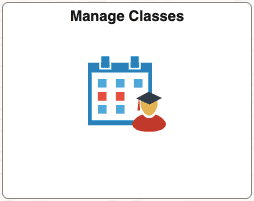
- Open the Manage Classes tile on your Student Homepage.
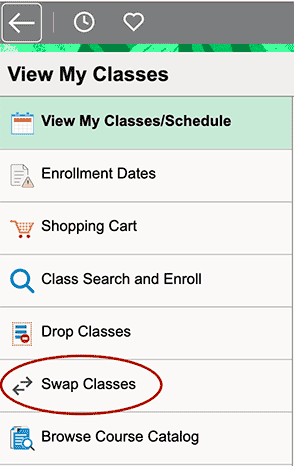
- Select Swap Classes from the menu on the left.
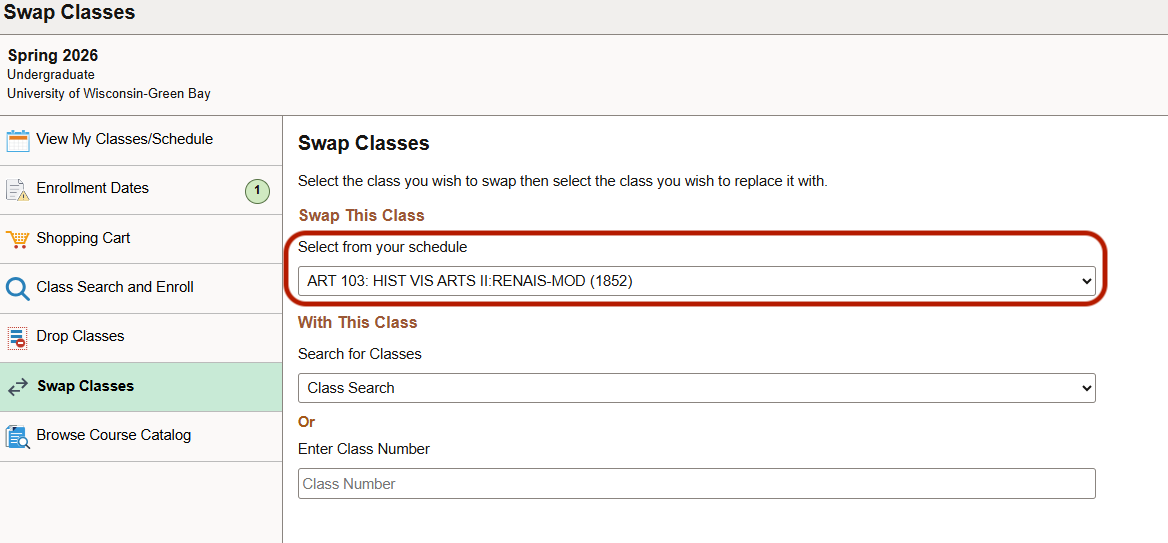
- Use the Swap This Class drop‑down menu to choose the class from your schedule that you want to swap.
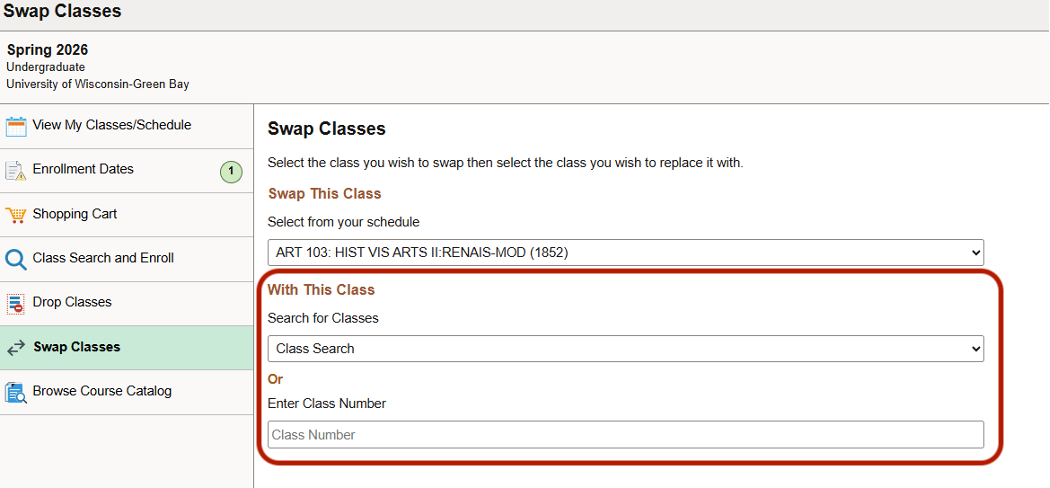
- Under With This Class, choose the class you want to swap in.
- Select Class Search, then choose Search to look for a replacement class.
- Or if you know the Class Number of the course you want to add, enter it in the Class Number field. For instructions to look up a class number, see How to Search for Classes.
- From the search results, choose the class you want and the specific section that fits your schedule. When you're ready, click Next.
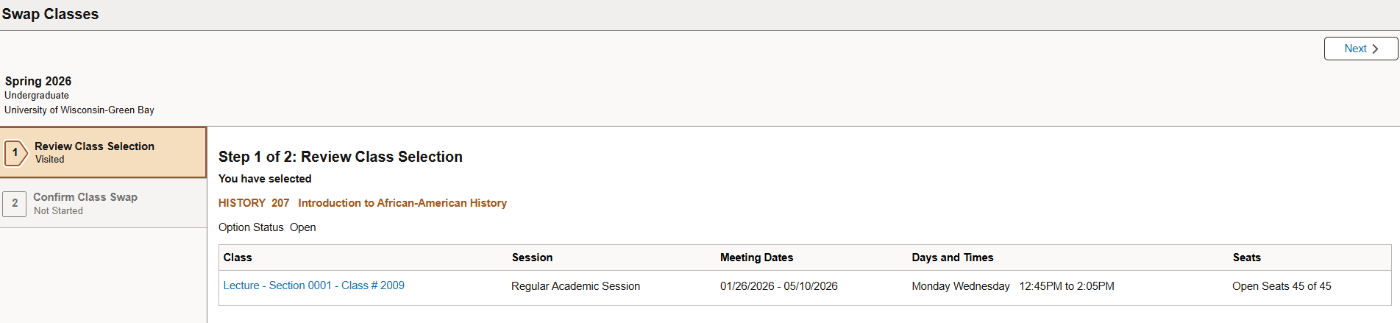
- Review Class Selection details. Make sure it’s the correct section. When you're ready, click Next.
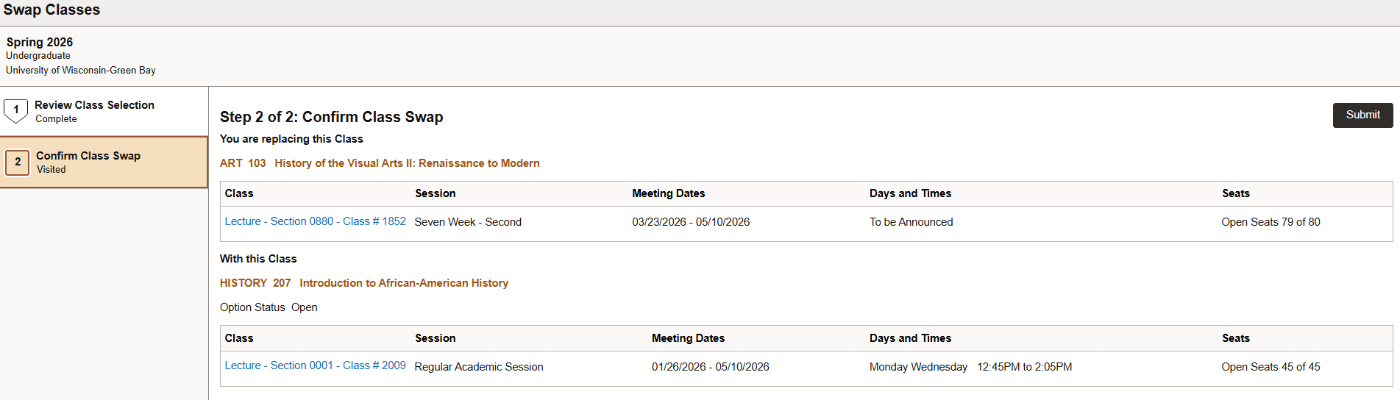
- Confirm Class Swap SIS will show you a summary of the class you're dropping, the class you're attempting to replace it with, and any requirements or warnings. When you're ready, click Submit.

Here to help!
We're here to answer your questions. Our knowledgeable support staff are ready to provide personal assistance with all your advising needs.