Student Information System
Personal Information
Does something look off with your information in SIS? Learn how to update your personal information below. If you need help with something not covered here, contact the Student Services Center at ssc@uwgb.edu.

**Please note that this webpage is currently undergoing significant updates. If you have any questions about using SIS, please contact the Registrar's Office at registrar@uwgb.edu**
How to Update Your Personal Information in SIS
Through the Profile tile on your SIS homepage, you can edit your:
- Address
- Email Address
- Emergency Contacts
- Phone Number
- Name(s)
Current students may update their Date of Birth, Legal Name, or Social Security Number (SSN)/Taxpayer Identification Number (TIN) through the Personal Data Update online form found on the Registrar's form page. Supporting documentation verifying the correct information must be provided.
Former students requesting to update their Legal or Preferred name may do so through the Name Update PDF found on the Registrar's form page. Supplemental documentation is not required for a Preferred Name update.
Update your Address
After selecting the Profile tile on your SIS homepage, navigate to the Addresses tab.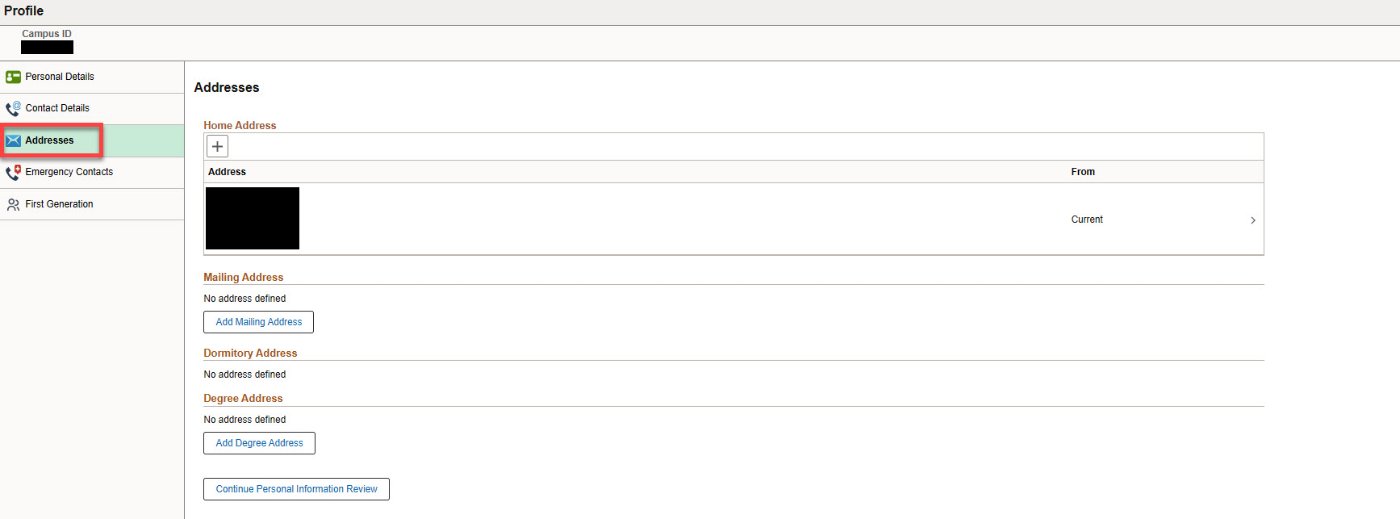
There are four address types on this page - the Home, Mailing, Dormitory, and Degree address types. You may add and edit your Home, Mailing, and Degree address types. If you live on campus, your Dormitory address will populate, but cannot be edited.
If no Degree address is on file at the time of your degree conferral, your diploma will be sent to your currently active Mailing address, or to your Home address if no Mailing address is provided.
Please note that you may not have two currently-active addresses under one address type, nor will you be able to delete any addresses entered. If you need assistance updating, adding, or deleting an address, please contact the Student Services Center at ssc@uwgb.edu.
Add a New or Future-Dated Address
Please note that only two addresses may be listed under one address type. One must be Current and the other will
- If an address already exists for an address type, select the + button to add a new address. If no address is listed for that type, select the corresponding Add button under that section's header. If you need to correct the currently-active address under an address type, please follow the instructions in the section below titled "Edit or Update a Current Address."
- In the pop-up that appears, you may choose to future date when this address will become active. If you know that you will be moving for example, you can pre-emptively update your address to take effect on the appropriate date. If you enter the current date in the From field, this address will become your current address for that type. Back-dating addresses?
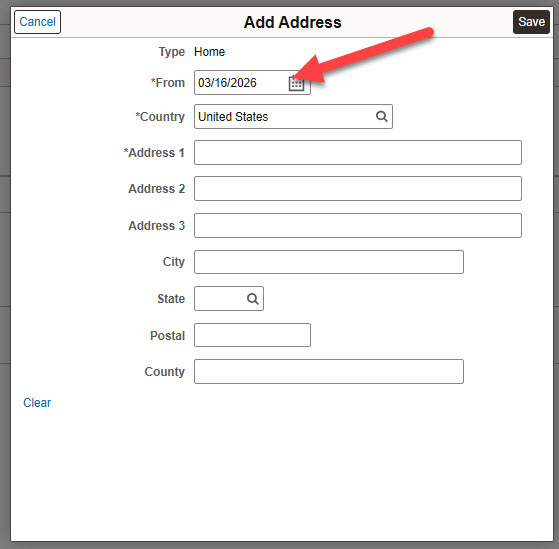
- Select the Save button to close the window and review the changes made.
Edit or Update a Current Address
To edit an existing address, click on it. The address information will appear in a pop-up similar to the one shown above and allow you to make any changes needed. Select Save when you've completed the necessary corrections.
Enter your address information in the pop-up that appears and select Save.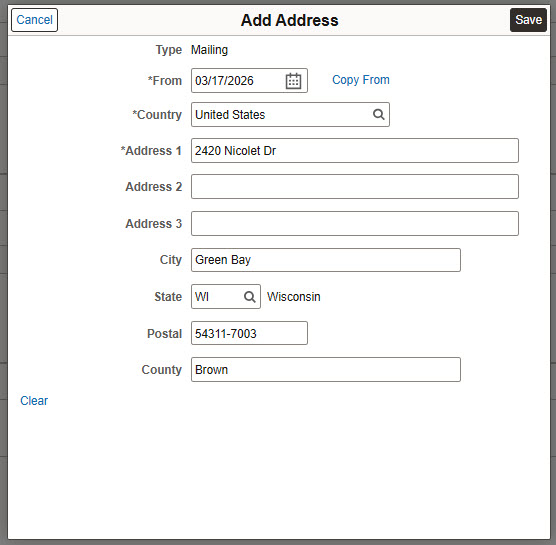
Update your Date of Birth
To view the Date of Birth (DOB) on file for you, open the Profile tile and select the Personal Information tab. If your DOB is listed incorrectly, please complete a Personal Data Update form, found on the Registrar's form page. You will be required to upload supporting documentation verifying your correct DOB, such as a driver's license or passport.
Update your Email Address
You may add or update a personal (or "other") email address under the Contact Details tab of the Profile tile.
An update to your campus (@uwgb.edu) email address cannot be made unless an update to the legal name is requested. Additional information is provided on the Legal or Preferred Identity Practices webpage.
Update your Emergency Contact
Your paragraph text. Say what you need to say here. You can place whatever element(s) is needed (paragraph, bullet list, link, button, etc.).
Update your Name
Students may have up to three name types:
- Legal (Primary) Name
- Preferred Name
- Degree Name
In SIS, you have the ability to update (or add) your Preferred Name or Degree Name.
To update your Legal or Primary Name, complete the Personal Data Update online form or submit the Name Update PDF found on the Registrar's form page. Accepted documentation include a driver's license, passport, marriage certificate, or court order. Please note that supporting documentation is required for a Legal Name update only.
To update your Preferred Name, select the Profile tile. You should be brought to the Personal Details tab, which lists the names and name types that are on file for you.
Your Degree Name is the name that will print on your diploma upon graduation. If a Degree Name is not provided, the diploma will list the Legal (Primary) Name by default.
Want more information? Learn more about which name is used where in our Legal or Preferred Identity Practices.
Update your Phone Number
You may add or update a personal (or "other") email address under the Contact Details tab of the Profile tile.