Navigating Student Billing in SIS
The Student Information System, also known as SIS, isn't only where you register/add/drop classes or get your class schedule. Your SIS account is also your place to manage your student finances. Charges for courses—like tuition, fees or late fee penalties—will be posted electronically to each student's SIS account. You can use your SIS account to view financial account information, make online payments. This tutorial walks through how you can locate financial information on your SIS account.
How to view Student Billing Account Details in SIS
- Log in to SIS with your UW-Green Bay user name and password
- The first page that loads is your SIS home page. Your student billing information is located under the "Student Billing" tile.
- To view your account details, click "Account Inquiry," option
- To view further details of each charge, select the current term
Making Online Payments in SIS
You are able to make electronic payments online from your SIS account. We accept Credit Card Payments (Visa, Discovery, American Express and Mastercard). Debit and Credit Card Payments will have a convenience fee charged by our online payment vendor. The convenience fee will be directly charged to your credit or debit card. Electronic Checks (e-Check) payments have no fees. (Enter your bank routing number and your account number from your check or bank statement – do NOT enter your debit card number if you want free e-check payment).
- Log in to SIS with your UW-Green Bay user name and password
- Click on the "Student Billing" tile and then select "Payments and Refunds"
- Select the "Make a Payment or Manage Refunds" option
- After you click “Make a Payment or Manage Refund” link on your SIS home page, the link will bring you to our online payment vendor, Nelnet Business Solutions (NBS). On the Nelnet screen click “Make a Payment” and choose your payment type (Credit Card, Debit Card, or Electronic Check). Follow steps to enter in your credit card or e-check banking information
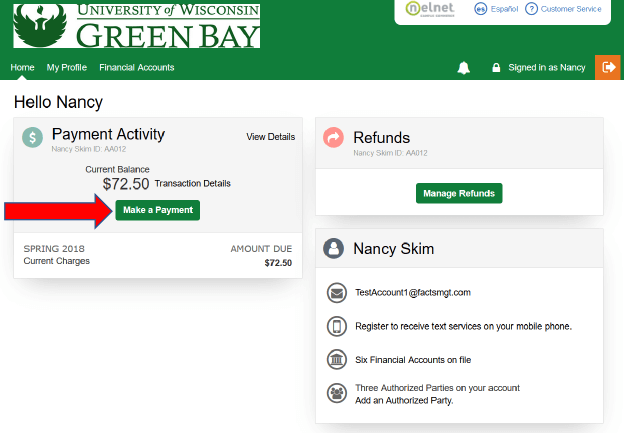
- A confirmation email will be sent to your student email address.
We're here to Help
Need help? If you have questions about international wire payments, or anything related to student billing, just give us a call at (920) 465-2224 and we'll answer your questions.